Hot Fix (2023.0220.1.0)
- Adjusted the Interface Screen so that you can still use "Copy Name To Traditional" while the Add Item panel is visible.
- Note: The button on the ribbon will only become active after you select a DB Component. This is necessary since the traditional alternative doesn't exist until a DB Component is selected.
- Adjusted the Interface Screen so that "Add Item"on the Ribbbon can be used to close the Add Item Panel (if the Add Item panel is open).
Note: The remainder of the release notes below were part of 2023.0218.1.0
New Features
Versa Reports - You Can Now Run Reports Outside Of A Project
The Versa Reports / Custom Reports screen now allows you to run (most) of the default reports in Versa without having to open a project.
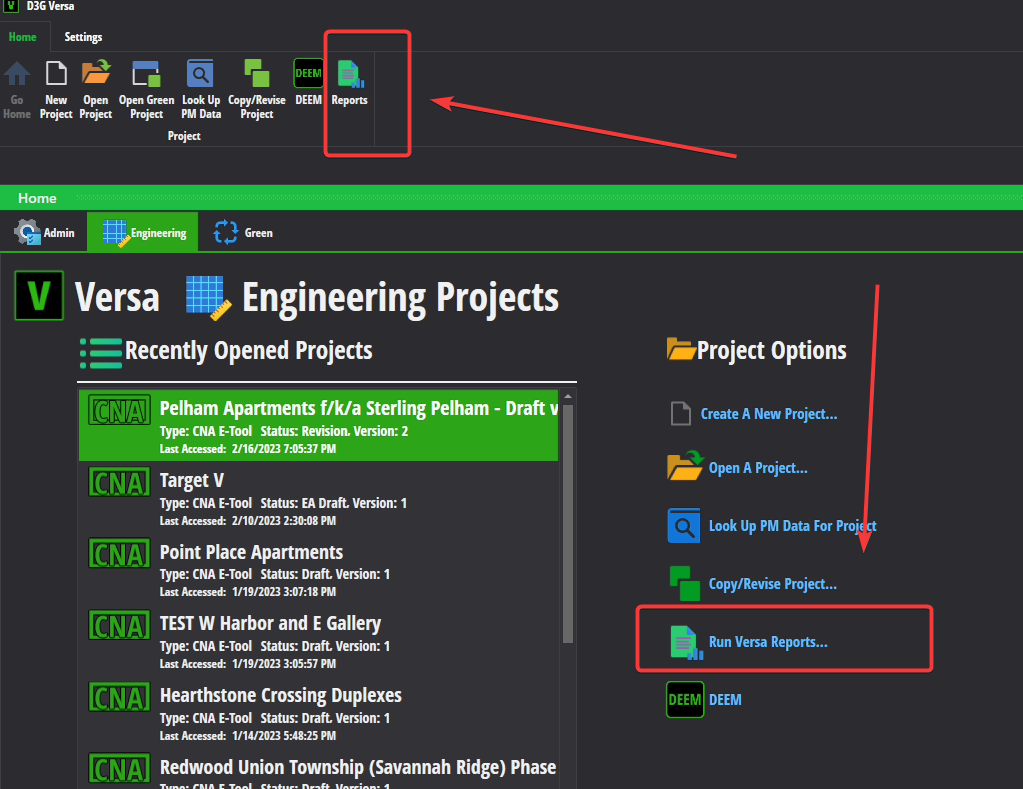
When you open this screen up, it will show you a list of all the reports Versa is able to run, including custom reports that have been made for one off reasons.

If you double click a report that is a default report (I.E. The reserves), Versa will slide out a panel where you can then select a project to run the report.
- Note: You can select a report by either clicking it and selecting open select report on the ribbon or double clicking the name of the report on the grid/list.

- Note: You can select a report by either clicking it and selecting open select report on the ribbon or double clicking the name of the report on the grid/list.
Of special note, if you run the Critical Repair report, the projects list will have a toggle switch at the top that lets you toggle between non-critical and critical repairs.

The only default report that currently does not appear on this screen is the flag report; if you wish to see that report on here, please let IT know via Jira.
Also please note that you can only run one report at a time and have to export it stand alone. If you want the export all option on here, please also let IT know via Jira.
The report designing link on the ribbon pictured is only visible to Admin / Dev users. If you are an admin user and wish to know more about the report designer, pleaser ask before attempting to use it, as it does have a learning curve.
Finally, if you have an idea for a custom report, please let IT know. Depending on the request we may have to put the report into Axiom (if the report requires a lot of data / number crunching).
Energy Audit - Recommendations - Changed how we link Interface Items to Parcel's Variable Replacer Sets
- On the Energy Audit Recommendations screen, we changed how you map / link the interface line items to the variable replacers sent to parcel.
- This change allows Versa to better keep track of which interface item gets sent to a table in parcel (I.E. Versa will know which window goes in Window1, etc).

On the right side of the grid, there is a new column called "Variable Replacer Set For Parcel". In each cell in that column, there's a large cell that has a drop down on the bottom.
When you click in that drop down, it will give you a list of variable replacer options to select.
Note that some of the possible interface line items will have their variable replacer options limited based on the component type.
- We do not know all the possible combinations of replacers and component types, so you may see all options for situations we're not completely aware yet.
Do You want To Save Your Work Message - Fixed And Now Cancel-able
The message box that pops up when you try to close Versa with unsaved changes has been fixed (so that it actually works).
There is also now a cancel button that lets you cancel shutting down Versa if you change your mind about closing the app.
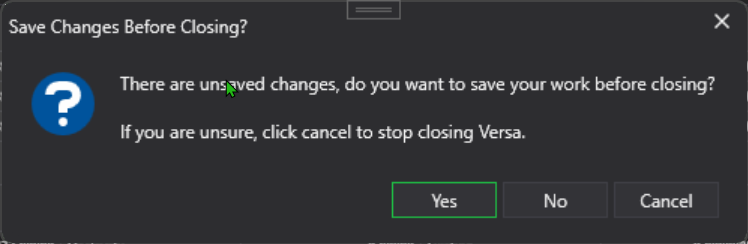
- Note: The yes buttons saves changes, in some cases it may stop Versa from shutting down since Versa needs time to save. The no button shuts down Versa and the cancel button obviously stops Versa from shutting down. The x button on the message should do the same as the cancel button.
Energy Audit - Weather Data Screen Changes
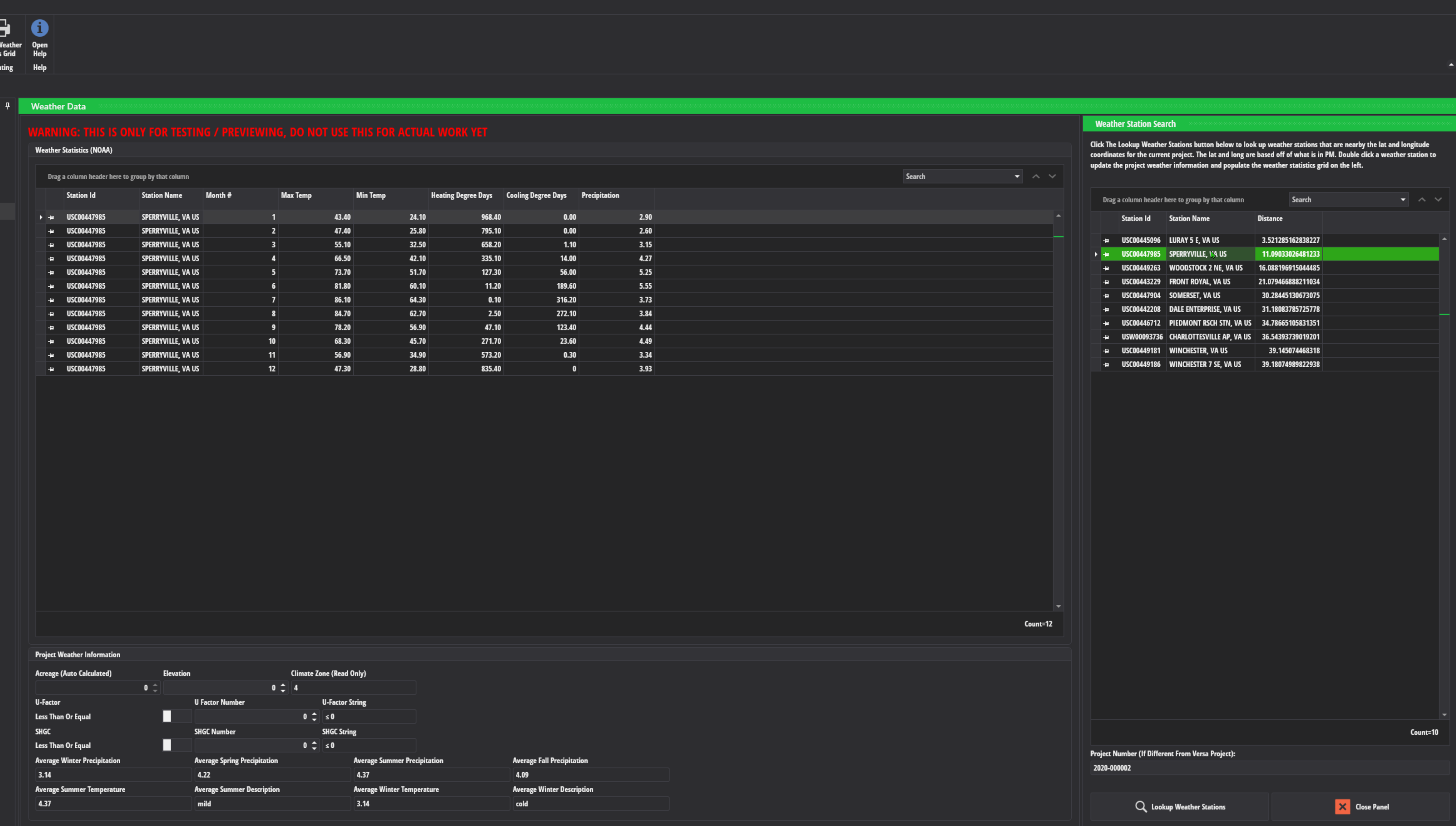
The weather statistics are now retreivable from within Versa:
On the ribbon of this screen, when you click the weather station lookup button, it will now slide out a panel on the right (pictured below).
- You can either click "Lookup Weather Stations" to look up the weather stations nearby the project's lat/long coordinates (obtained from PM) or you can enter the number of a particular project to do the same.
- After you click the button, Versa will display the top 10 closest weather stations to the property within the project.
- Double clicking a weather station will populate the weather station statistics for the energy audit. No more having to copy and paste the weather statistics from the climate charts website.
- The weather chart is now obtained from SSRS / SQL Reporting. When you click the chart button, Versa will open up your default browser and take you to a report that generates the chart for you.
- NOTE: Due to security reasons, you must be on a company computer and on the network or VPN for this to work.

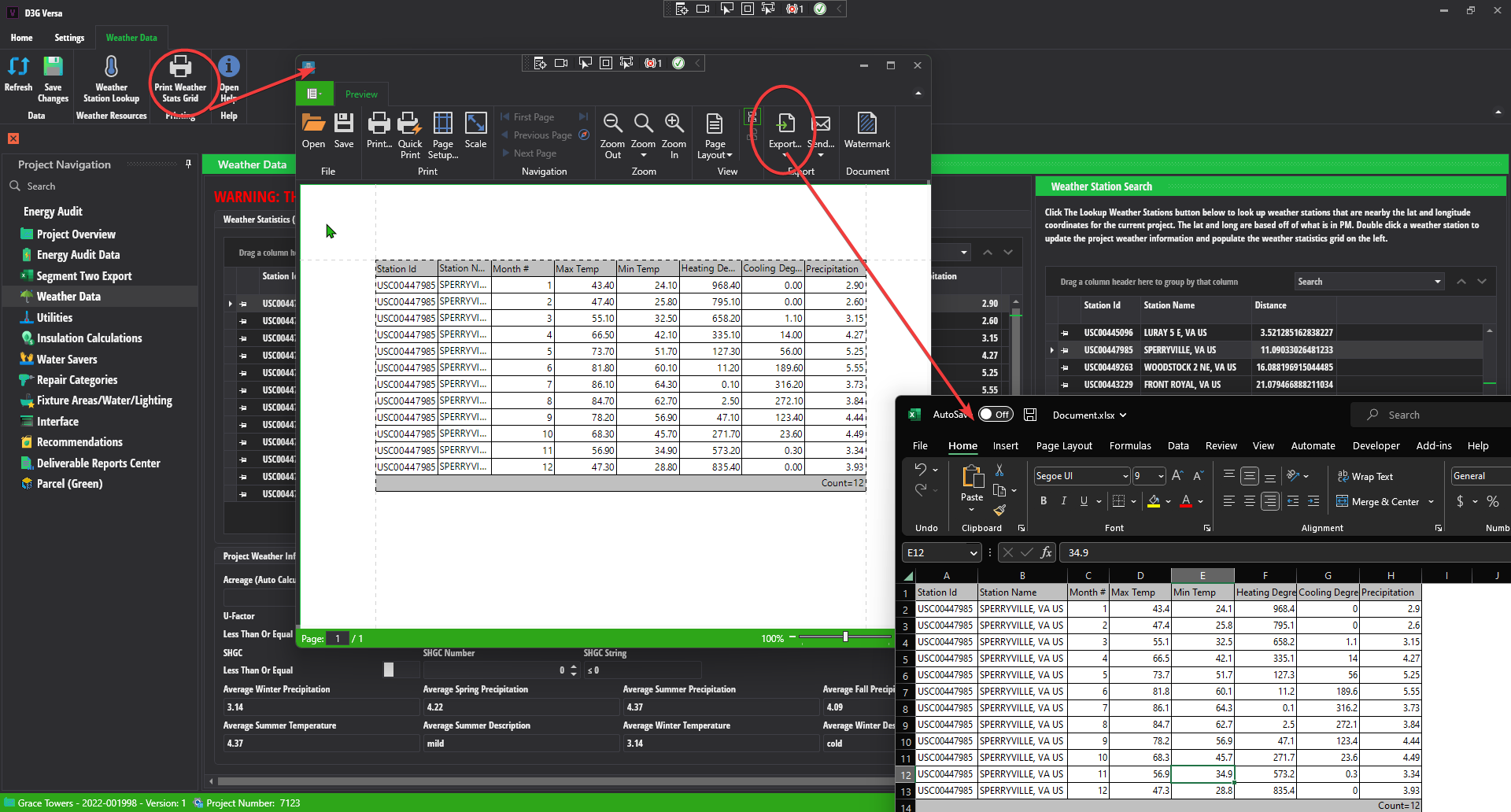
- You can now print / export the weather stats grid as a report (click the print weather stats grid button).
Water Savers - New Functionality
The water savers screen now allows you to generater the water savers summary table (in a grid format).
- To do this click the "Show / Hide Water Savers Summary" button on the ribbbon.
You can also print or export the water savers summary table. To do this click the print water savers summary grid button (this also shows / generates the table).

Fixtures Screen - You Can Now Generate The Lighting Table For The EA
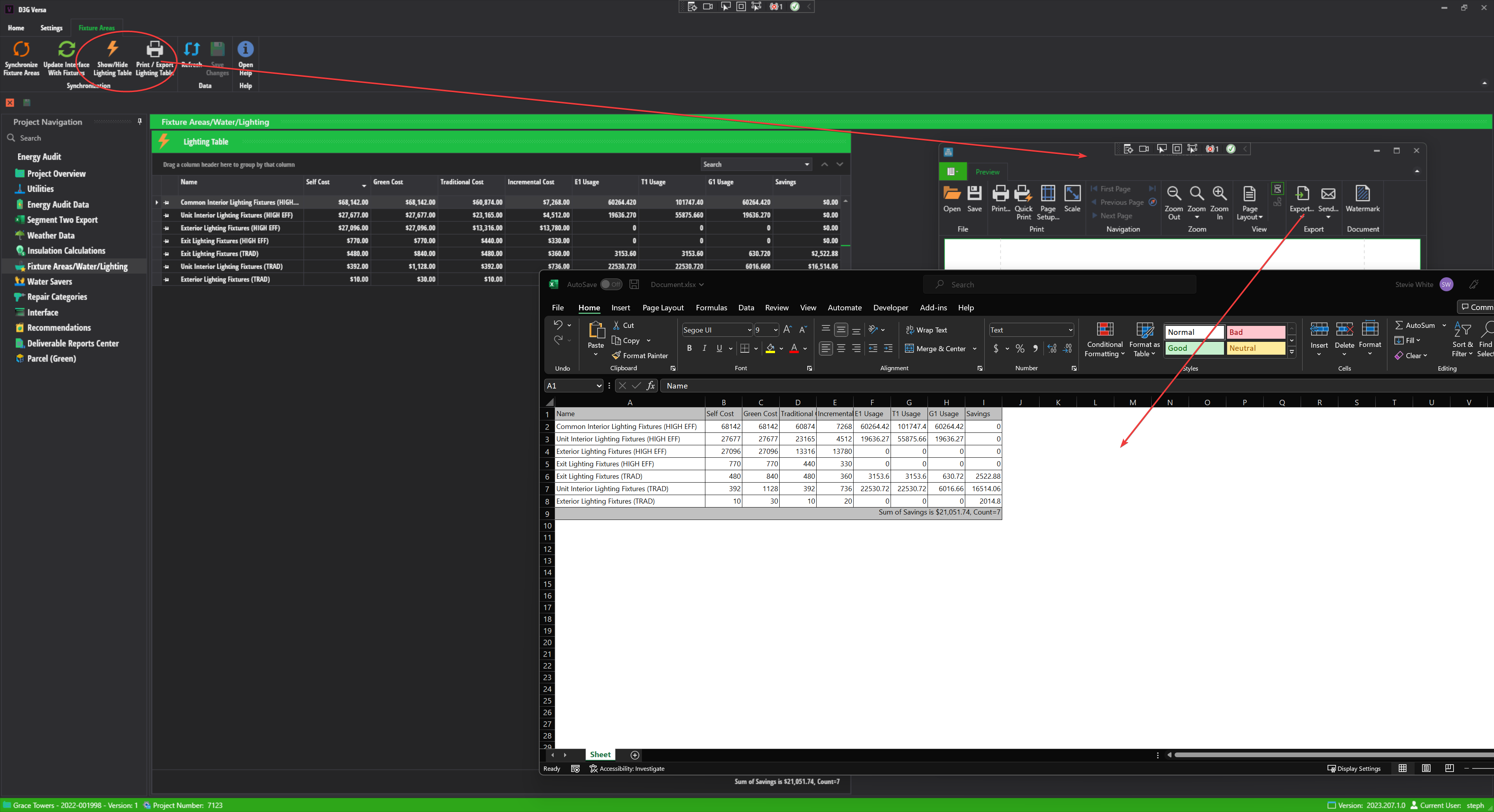
The fixtures screen now allows you to generate the lighting table / grid for the energy audit.
- To do this, click the new "Show/Hide Lighting Table" button on the ribbon.
- Note: Clicking this button hides the rest of the fixtures because the table is too big to fit on a standard 1080p resolution monitor.
You can now print and export the lighting table / grid on the fixtures screen by clicking the print / export lighting table button.
Improvements
Interface Screen
The Interface screen now loads its data asynchronously. That means the screen itself loads faster, but the data for it (the line items) will continue to load separately if it's taking longer to get all the line items from the database.
- In the event that the screen hasn't gotten all of the items back yet, you will see a loading indicator inside of the Grid in the Interface. The indicator will go away once all the line items are loaded (or the Grid will tell you there are no records if it's a blank project / interface.)
Energy Audit
- On the Energy Audit Recommendations Screen, we renamed the "Original Component" column to "Existing Interface Line Item"
Export To E-Tool
Updated Versa's code to keep it in sync with the most recent update to the E-Tool on 2/17/2023.
Added a better explanation of the error message received when your password with HUD is about to expire.
Admin - Non Hud EUL Editor
This screen now loads asynchronously like the Interface (due to the large amount of data it has to display).
The screen now has its default grid layout adjusted to sort by the ASTM Number and all EULs are grouped by the ASTM number.
Other Changes
We removed the "Cache" feature from Versa since it did not appear to actually be improving performance for remote users.
We removed the OHFA EUL option from the Project Overview screen. Any previous projects using OHFA EULs are not affected, but going forward you cannot select OHFA for EUL types.
Bug Fixes
Fixed a potential crash that could occurr if you tried to open up the energy audit recommendations screen for projects that had no g1/g2 alts.
Adjusted copy project so that it does not leave behind the Energy Audit recommendations.
Fixed a performance bug that was causing the Water Savers screen to take FOREVER to load when the project has lots of fixtures.
The interface was not disabling all of its controls when the add line item panel was visible. This has been corrected. If there is a control / button that you think should be accessible when the panel is visible, please let IT know via Jira.
Questions / Comments ?
- If any clarification is needed for the update information listed up above, please contact support via Jira.