New Features

- Versa has been updated to the newest version of DevExpress' components library. This will allow Versa to continue to take advantage of the newest features that DevExpress allows Versa to exhibit.
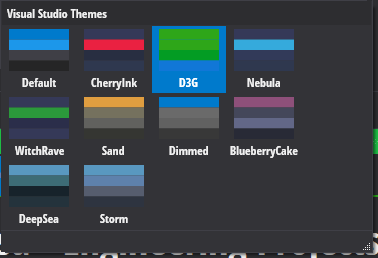
- For example, when you are using the Visual Studio 2019 dark or light themes, you will see there are new color palettes to pick from for customizing the look and feel of Versa:
- Another example of the above is that now when you use the filter panel and editor, it has an improved and unified appearance on the grids in Versa:


- Microsoft has released the newest version of .NET, version 5. This is a new unified version of .NET that aims to be a consolidated, one unified version of .NET. It replaces .NET Core, Mono and the old .NET Framework. As you can see from the chart up above, this means Versa's capabilities will continue to grow and expand.
- With this update, Versa should receive some performance improvements as well as continuing to be on the cutting edge of both Dot Net and Windows.
- The inspected units screen in Versa now allows you to edit inspected units using the panel (similar to the Interface screen).

- As with the above, the inspected units screen now allows you to add an item and keep the panel open (also similar to the Interface screen).

- The lookup editor combo box that was used for searching for components on the interface has been replaced with a new window that allows you to search without having to mess with a drop down menu.
- To access it, click the "Select DB Component" button on the add/edit item panel or the pencil icon on the db component cells.
- The search box should be selected automatically when it appears, so you can start typing immediately. You can also apply filters and sort like you can on all the other grids in Versa. Currently this window does not save any filters, so it will reset to its default state when you close it.
- When you find your component, you can simply hit the up and down arrows on your keyboard to move the selected row up and down and then hit enter or return to select the component you want to use.
- You can also double click on an item to select it or click the select component button.
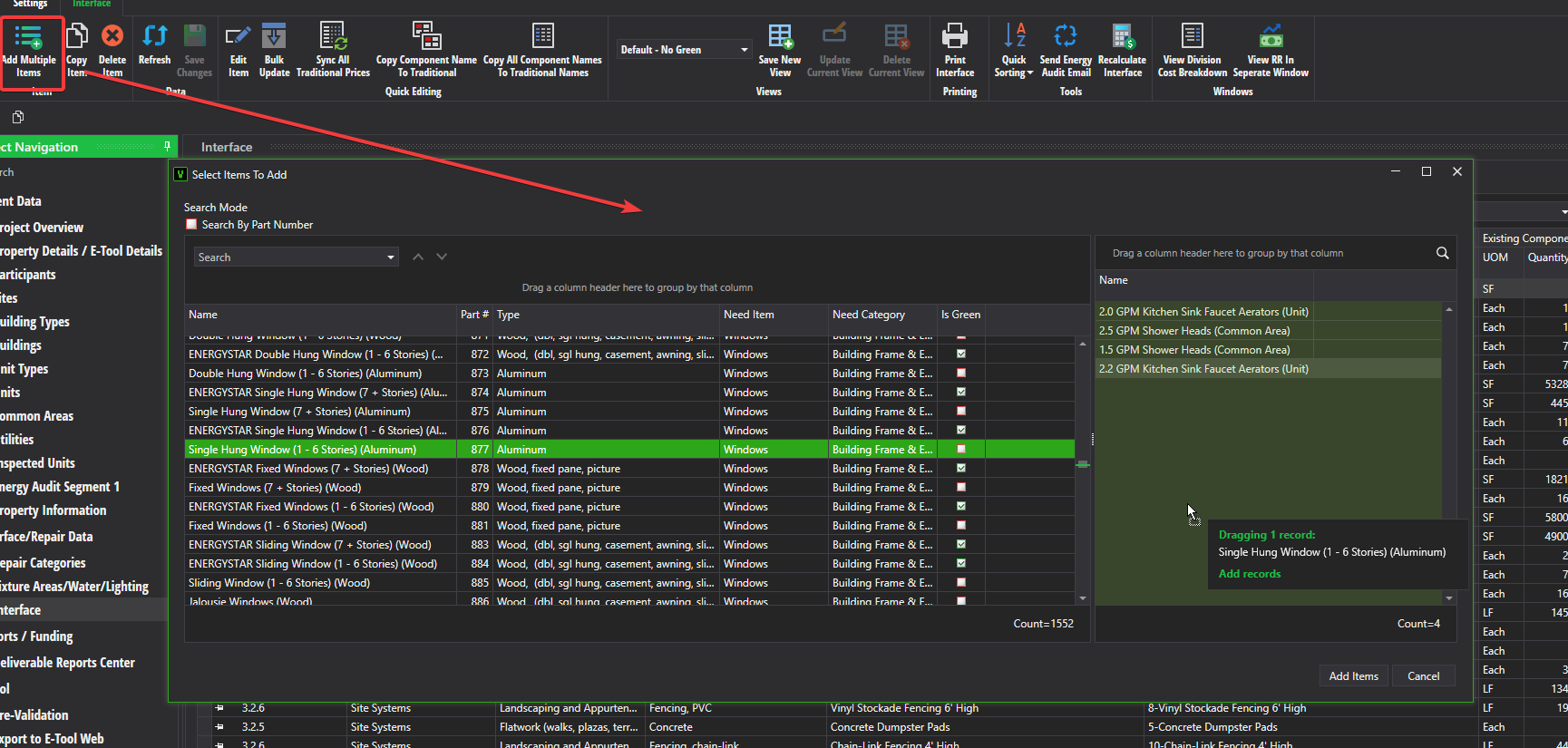
- Finally, you can now add multiple items at a time on the Interface. This "replaces" the new item row that was broken in a previous .NET / DevExpress update.
- To access this window, you need to click on the add multiple items button on the ribbon in the Interface screen.
- The left grid shows the component look up, which functions the same as it does in single item mode.
- You can move components to the selected components list by double clicking on a component in the left grid, hitting enter/return when it is highlighted or dragging the row onto the grid on the right.
- Once you have all of your components selected, simply click the Add Items button. The interface will be populated with the items as new items.
- Note: It is recommended you do this with end of cycle items before you do replace now items since replace now items require you fill out more details.
- In the future we may expand upon this feature and add options to pre-populate the items, but for now this is the start.
Improvements
Added the EUL columns to the Component Library screen (admin mode only).
The reserves and financial schedules have had their math adjusted for CNA E-Tool jobs so that they now correctly match HUD's numbers when the change year is greater than 1.
- This is technically a bug fix since the original formulas from the Companion did not handle change years greater than 1 correctly, but we never really found it until switching to E-Tool 3.0 when HUD changed the default change years.
Bug Fixes
Fixed a bug where the Primary Contact on the Participants screen was being exported to the E-Tool website when it should not have been exported.
Fixed a small memory leak that could occurr when navigating away or closing the inspected units or common areas screen.